


Encrypted Text Chatting
Simple, easy, and efficient!
Brosix provides you with an efficient and secure communication environment, and Text Chat is a central element of this. With this feature you can instantly send, and receive, text messages to your network contacts. Better yet, all messages sent with Brosix are fully encrypted using end-to-end encryption technology, guaranteeing that your communication remains secure.
Send Messages to Offline Contacts
Even if a contact isn’t currently online, the Text Chat feature guarantees that they’ll receive your message in the future. If you send a text message to a user who isn’t currently logged in to the Brosix network, they’ll receive the message as soon as they log in!
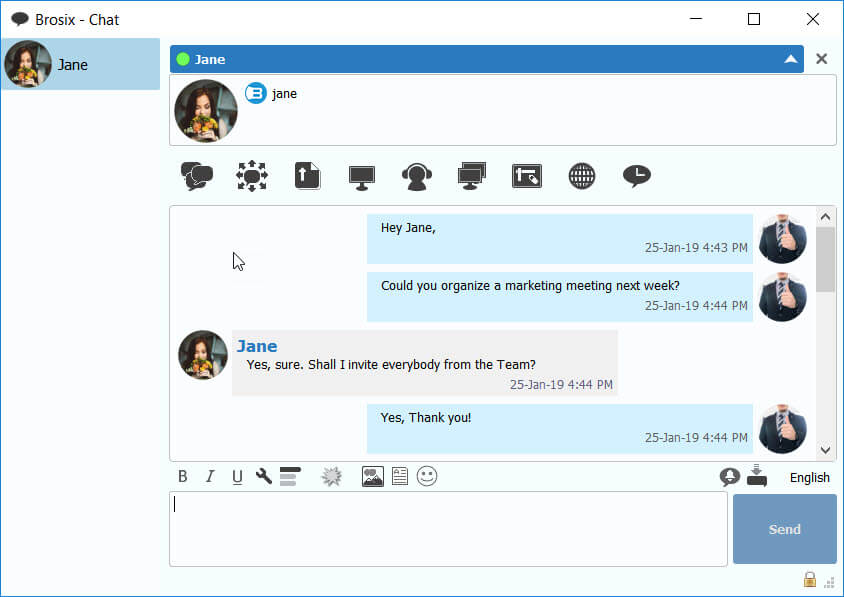
User Friendly and Efficient Text Chatting
The Text Chat feature provides easy to use, secure and reliable communication. The feature’s interface is designed with ease of use in mind. Here are some tips in order to make it easier for you to get started:
Starting a chat session
- Select a name from your contact list.
- Click on the “Text Chat” icon on the right side:

- Type your message in the text box at the bottom and click “Send” (or press the Enter key).
… and an easier way to start a chat
- Double-click the name from your contact list.
- Type your message in the bottom text box and click “Send” (or press the Enter key).
Message history
With Brosix you’ll never lose track of your text chats. All your text chat sessions are saved locally on your computer. You can easily review the messages you’ve exchanged with your friends or colleagues by using the chat history feature.