


Encrypted Voice Calls
Talking is easier!
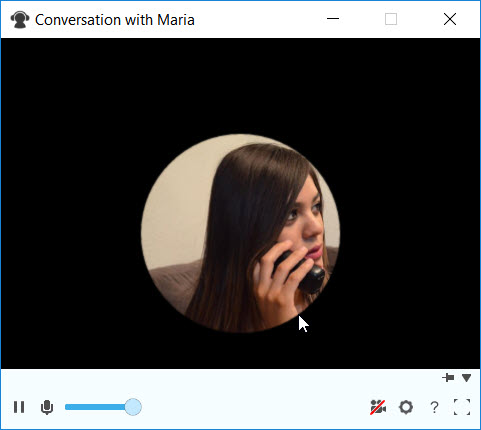
Text messaging has its own advantages, but in some cases, talking is faster and gets the intended message across more efficiently. Making a standard call is not difficult; everyone knows how to use a phone. With Brosix, the procedure is the same. And it comes at no additional cost.
Say that your customer, colleague, or co-worker is located in another country or continent. Traditionally, you would have had to pay enormous phone bills for expensive international calls. Brosix offers you a great alternative solution through limitless, practical, and efficient VoIP calls to practically any location around the world.
Why Brosix?
- Secure and reliable: Brosix provides strong end-to-end encryption for every call, which makes your conversations secure. Every call is processed through a special technology that we have developed internally, eliminating any chance of poor connectivity.
- Free: Yes, it is free-no extra or hidden charges. No matter how long your conversation is, you won’t ever need to pay a cent.
- Easy-to-use: Our goal is to ensure the software is intuitive and user-friendly. We strive to make our customers feel comfortable in their daily work processes, so making secure calls with Brosix is as easy as 1-2-3. All you have to do is select a name from your online contacts list and click on the “Audio and Video Call” icon on the right side.
- Firewall-friendly: Many VoIP applications fail when it comes to firewalls or NATs. Brosix’s VoIP is firewall-friendly. This means that you can use it behind a firewall/NAT as if you were directly connected to the Internet.
Combine Voice Calls With Other Brosix Features
End-to-end encrypted calls can be a great addition to other features on your Brosix network. The screen-sharing and screenshot features become even more efficient when you can speak directly with a colleague to explain what they’re seeing. The whiteboard feature can spark even more creativity when you add the audio call option to your visualizations.
Hold Group Calls
Group calls are a great way to stay connected with your team. Brosix allows you to hold conference calls, as long as the members of the group manually set up individual calls between each other. As an example, A, B, and C want to hold a group call.
- A sets up an individual call with B and C.
- B sets up an individual call with A and C.
- C sets up an individual call with A and B.
This way, all three colleagues will be connected and ready to meet.
How to Initiate an Encrypted Audio Call With Brosix
You can start an encrypted voice chat in a matter of seconds with just two steps:
- Select a contact from your contact list.
- Click on the “Audio and Video Call” icon at the top of the screen.
It’s as simple as that. You can also launch a voice call from the “Actions” menu. Once you select the contact you want to chat with, enter the “Actions” menu and select “Audio and Video Call”.