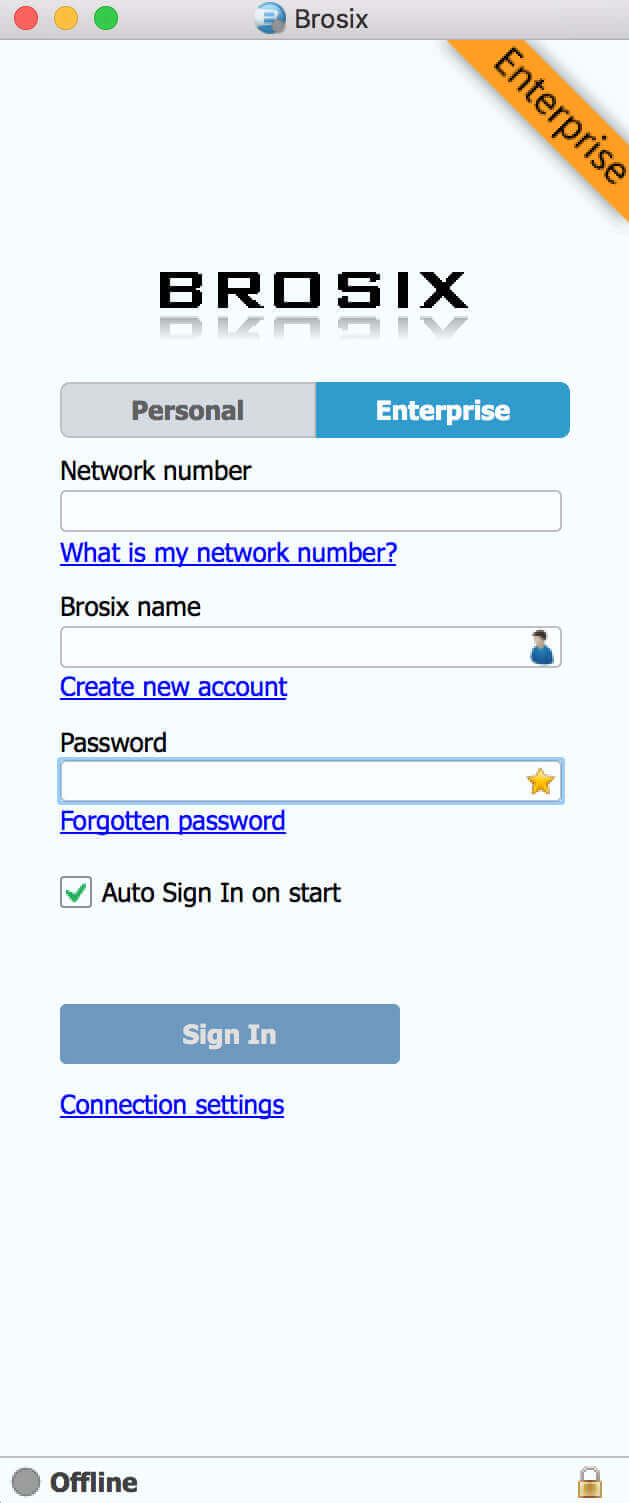


- Text chat, Group Chat Rooms
- Unlimited P2P File Transfer
- Remote Screen sharing, Screenshot
- Voice and Video messaging, Virtual Whiteboard
- Encryption of all communication channels
- See a full list of features

Install Brosix for Mac
1. Save the Brosix.pkg file
When you use Safari, the file will automatically be saved in your default downloads folder. Double click on the file and the installer will start. Follow the instructions to complete the installation.
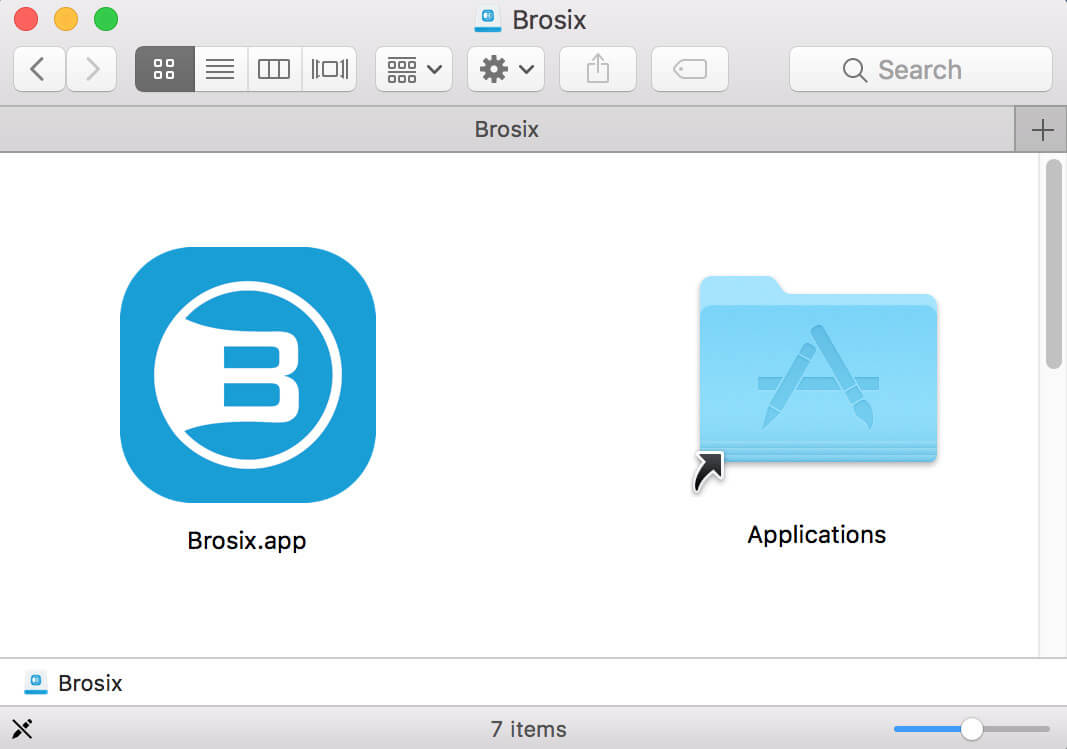
2. Install Brosix program
Brosix is already installed. Double click on the Applications icon to open the Mac applications folder. You can also drag and drop the Brosix icon from the Applications folder to any other location you choose (for example your desktop or the dock) in order to make it easier to locate and launch.
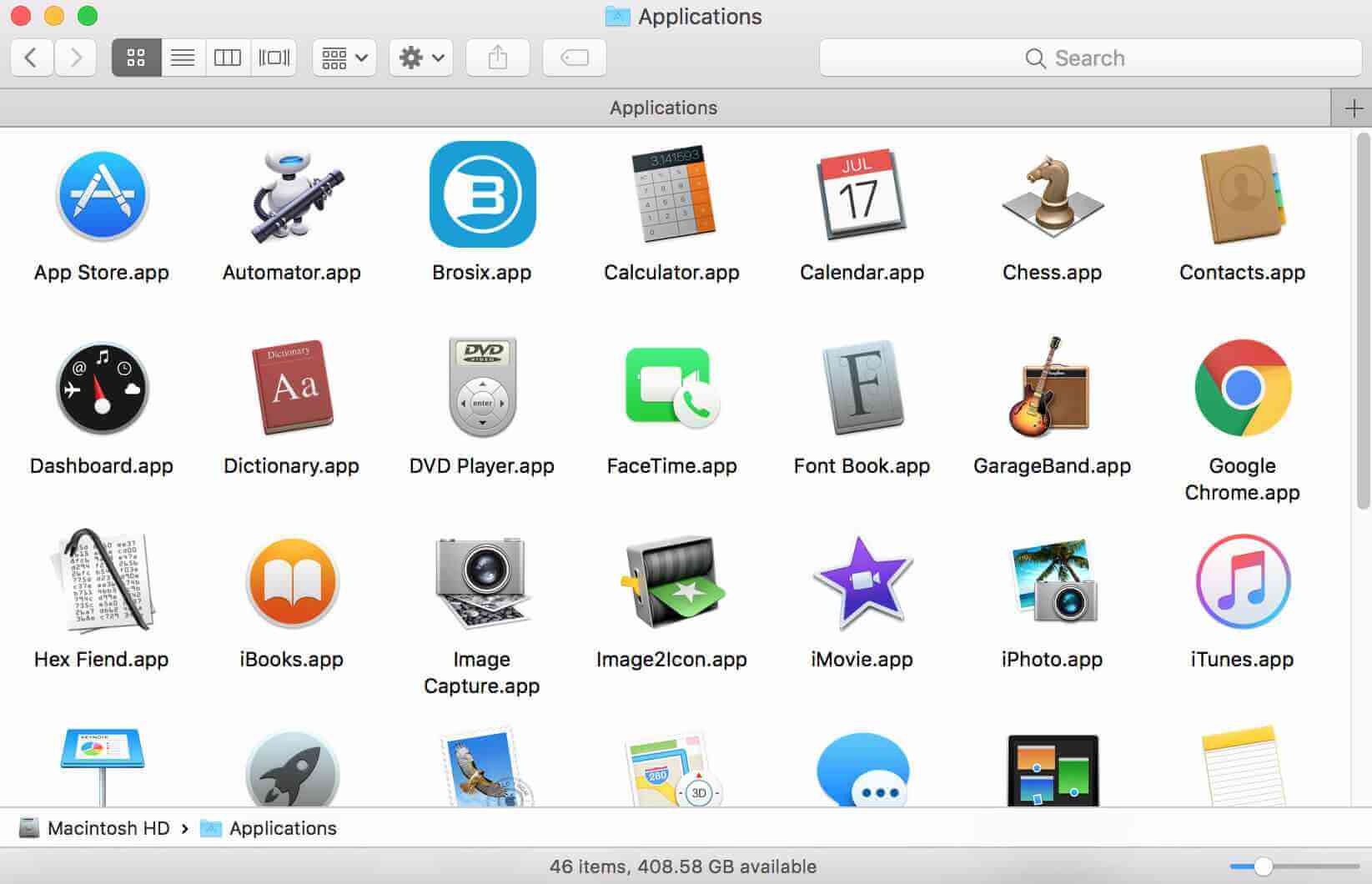
3. Launch the Brosix program
In order to launch Brosix, double click on the Brosix icon and the application will appear on your screen. You will also see the Brosix icon in both the dock and menu bar.
NOTE: Mac may not want to start the application
If you see the message “Brosix cannot be opened because the developer cannot be verified”, please open this tutorial and follow the instructions:
Brosix does not open on Mac