


Screen Sharing Software
Have you ever tried to explain to a customer or colleague how to configure their computer, or use a software application? Sometimes it’s easier to show than explain! Or sometimes it’s even better to do it yourself on their computer while using your own. Brosix’s Screen Sharing and Remote Desktop feature allows you to do just that.
The Brosix Screen Sharing feature lets colleagues and friends easily share and view their screens with each other. Brosix offers four options for Screen Sharing:
- Share your screen with a contact to view
- Share your screen with a contact and grant them access to operate your computer (also known as Remote Desktop)
- View the screen of a contact
- Access and operate your contact’s computer
Brosix customers have already found numerous ways in which this feature improves their collaboration and productivity. Here are a few of the top ones:
Training Staff
Whether onboarding new hires, or upskilling current team members, Screen Sharing and Remote Desktop allow you to easily demonstrate new techniques and procedures directly on your trainees’ own computers. This is a particularly useful option if you work with remote employees.
Engage Colleagues with Presentations
Share a presentation directly from your computer with an audience anywhere in the world. Screen Sharing can help you to more effectively engage potential clients, remote team members, or anyone else.
Access Computers for IT Support
IT departments can now check your computer remotely even if they’re located in another country. You can also demonstrate new programs to a colleague, or even check out a certain website together for more effective IT support.
Apart from its numerous uses, the Screen Sharing feature has two particularly strong aspects:
- It’s free and unlimited – there are no restrictions on how long or often you use the feature. You can use it for short periods every day, or leave it running all day. There’s no cap on usage.
- It’s simple to use – you can launch a session in seconds with a couple clicks of the mouse.
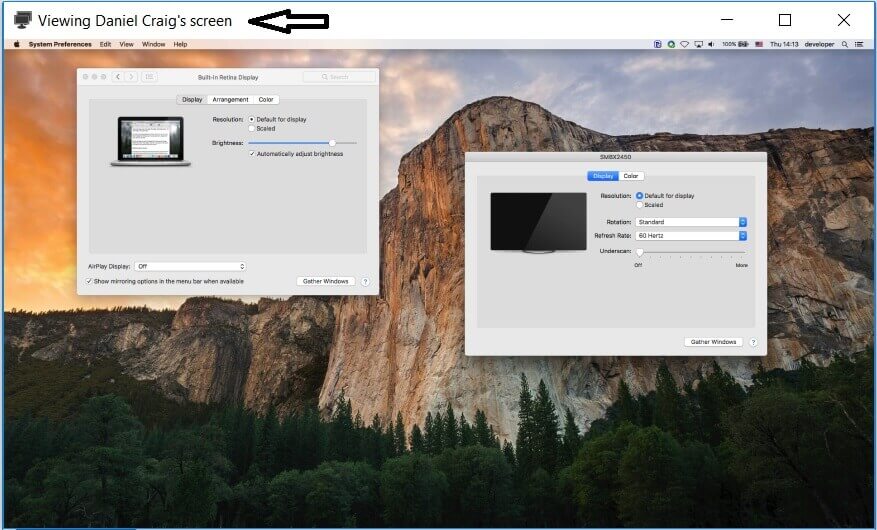
Starting a Screen-Sharing session in just three steps:
- Choose a contact from your contact list.
- Click on the “Desktop Sharing” icon on the right side:

- Select the type of session.